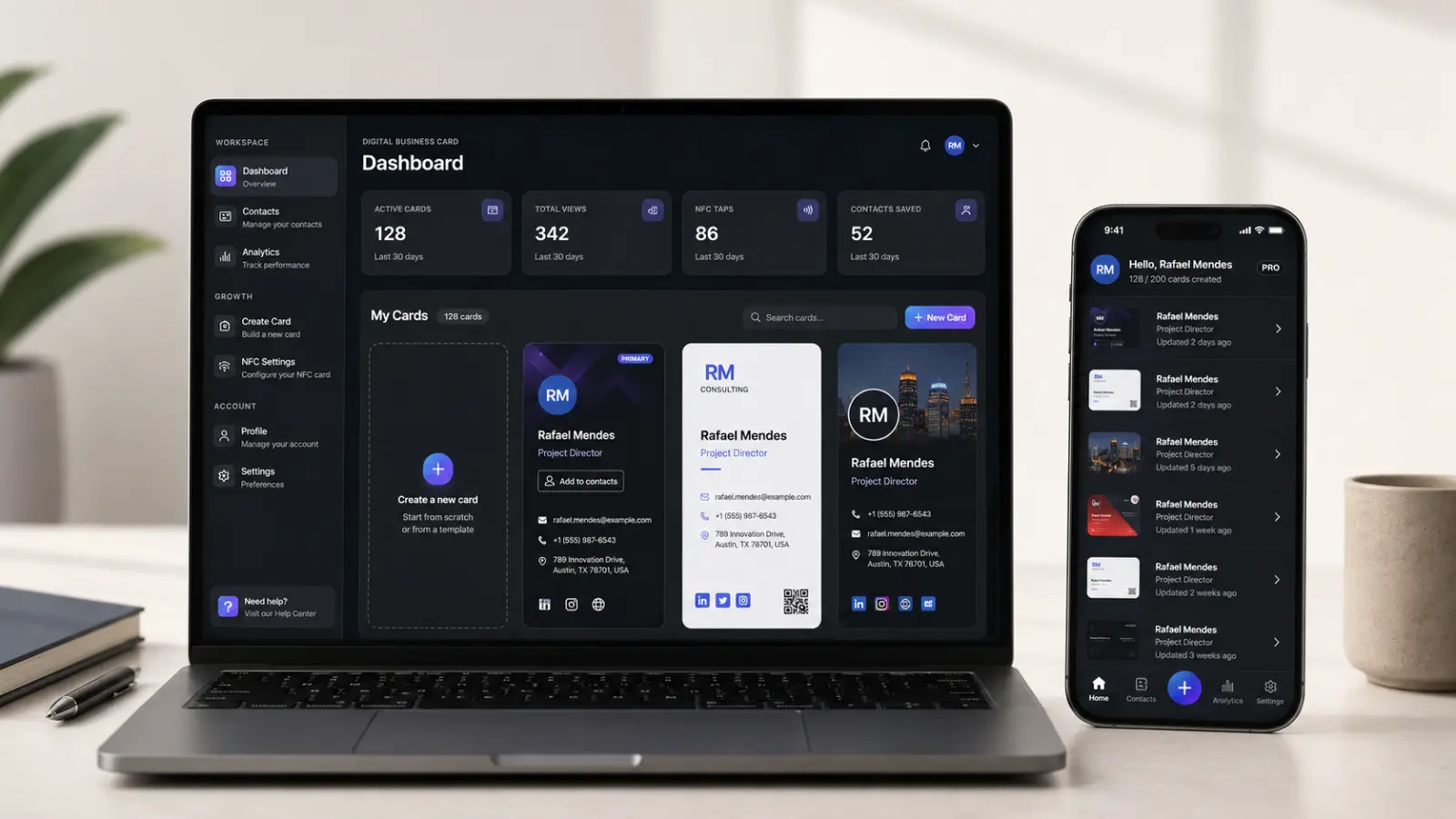
If you need to access the ClickCard admin panel to manage users, QR Codes, templates, and your company's metrics, this guide walks you through the complete step-by-step.
The platform was built to simplify managing corporate digital business cards, giving you full control of your operation in just a few clicks.
Official access to the panel is through the ClickCard Company platform.
How to log in to the ClickCard panel

To access your account:
Go to the official ClickCard panel
Enter your email and the password sent to you by the ClickCard team
Click Log In
After logging in, you'll be taken to the admin environment, where you can manage every resource on the platform.
Forgot your password?
If you can't access your account:
Check the email the ClickCard team sent with your initial access details
If needed, request support at contato@clickcardapp.com
Keeping your access details up to date ensures more security for your company.
Main areas of the panel
Dashboard

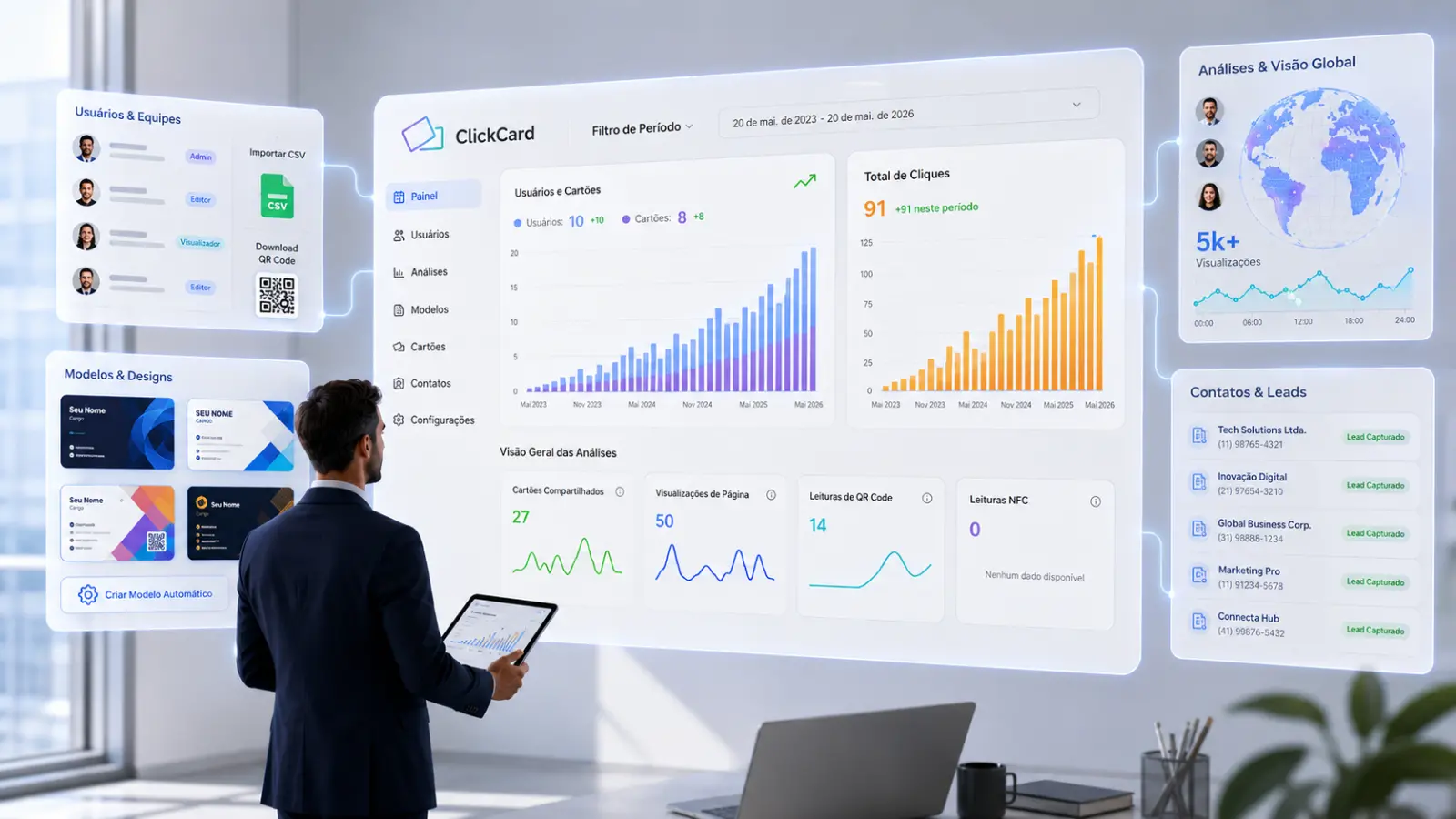
Having access to the right data makes all the difference in decision-making. With a smart dashboard, you can track the performance of your digital business cards in real time and understand how users are interacting with the platform. [Find out in detail why a control panel is essential for analyzing your team's results].
On this screen, you can view metrics such as:
Number of registered users and cards;
Total clicks and views;
Indicators in green showing the growth recorded in the selected period, making it easy to compare performance;
Shares made and how many times the card was accessed;
Scans via QR Code and NFC.
The charts also help you spot trends, growth, and engagement levels over the period analyzed, making data visualization much more practical and strategic.
Analytics

Beyond the main metrics, analytics offers advanced analysis that helps you understand user behavior and digital business card performance in greater depth.
With smart filters, you can select specific periods, groups, or users to view personalized data. The platform also presents detailed indicators such as:
Total interactions;
Card views;
Shares;
Number of visitors;
Total active cards;
Scans via QR Code and NFC.

This screen also presents detailed analysis of the times and days of the week with the highest access volume, along with the types of interaction visitors use most. This lets you identify usage patterns, understand which features generate the most interest, and make more strategic decisions to improve results and expand the reach of your digital business cards.
Real-time monitoring and geographic analysis

The system also offers advanced real-time monitoring features. One screen presents a geographic heat map, showing the regions where the most interactions with digital business cards occurred. This makes it easy to analyze reach and engagement by location.
Another important feature is the real-time activity screen, which displays the latest interactions on the platform, letting you follow accesses, shares, and user actions instantly.
In addition, the dashboard highlights the top-performing cards and users, making it easy to identify the most active profiles and the strategies generating the most results.
Users
The users area was designed to make it easy to fully manage the team members registered on the platform. There, you can view all registered users, track the activation status of their digital business cards, and quickly access each member's key information.
The system also lets you edit registration data, confirm emails, and keep information up to date in a practical, organized way. In addition, the platform offers the option to download the digital business cards' QR Codes, either individually or in bulk, making it easy to print, share, and use them at events, on badges, or in corporate materials.
Import Users
Lets you register users individually or import multiple team members via a CSV file.
Groups
Organize users when there is more than one card template, ensuring each team accesses the correct card.
Templates

The templates area lets you manage all the digital business card templates available on the platform in a simple, organized way. There, you can view the registered templates and assign specific groups to each one, making it easy to segment and control the cards your company uses.
In addition, the platform features automatic card creation for team members, making the process much faster and more efficient. With it, new users can automatically receive their digital business cards based on the defined template and group, streamlining the operational flow and reducing your team's manual work.
Cards
Lets you view and access all the digital business cards created.
Card Generation Tasks
Track the queue of new cards being created.
Contacts

View all the contacts captured by your team members for lead management.
Sliders
Manage the notices and banners shown on the app's home screen.
Profiles
Create admin profiles for managing the panel.
Company Settings

Company profile
Password change
Language
Important tips
Add the ClickCard domain as a trusted sender in your corporate email provider.
This keeps important messages from being sent to spam.
Conclusion
The ClickCard admin panel was created to make managing corporate digital business cards simple, fast, and strategic.
With it, your company can:
Centralize users
Manage cards
Monitor results
Organize teams
Strengthen professional connections
To take advantage of all the platform's features, access the official ClickCard panel now and explore everything it offers.

Enjoyed this article? Follow us on Google